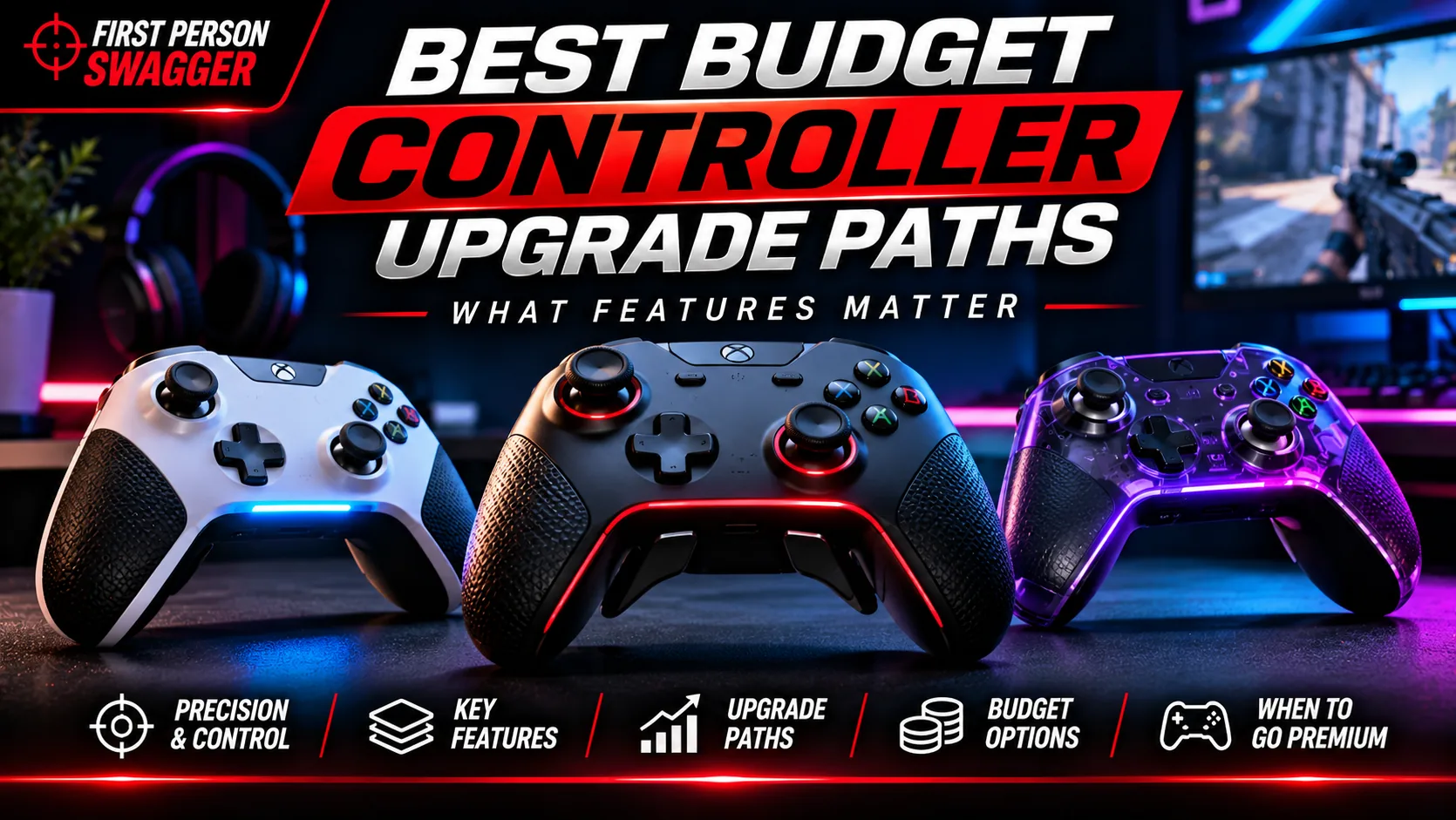
Most controller upgrades are bought to fix a feeling, not a problem. A new controller can look like the quickest way to play better, especially when every product page promises more precision, faster inputs, and more control. But for a lot of players, the stock controller that came with the console is already good enough. The official Xbox Wireless Controller and the PlayStation DualSense are both solid, well-supported baselines, and swapping either one out doesn't automatically make you aim better or react faster.
A controller upgrade makes sense when it fixes something specific: a stick that drifts, a connection that drops, a shape that tires your hands out, or a feature you would actually use every session. If you can name the problem, you can usually find the smallest and cheapest change that solves it. If you can't name the problem, the best budget move is often to spend nothing.
Prices and specs are based on official manufacturer information as of November 2026 and can change, so always confirm compatibility and pricing before you buy.
First question: do you need a new controller at all?
Before looking at any product, check whether your current controller actually has a problem. These are the common, legitimate reasons to replace or upgrade:
- Stick drift. Your view or character moves when you aren't touching the stick, or the stick doesn't return cleanly to center. Small amounts can sometimes be masked with an in-game deadzone setting, but drift that keeps getting worse is a real reason to replace.
- Worn buttons or triggers. Buttons that stick, double-press, or stop registering reliably will hurt you in any game, not just shooters.
- Connection dropouts. If your controller regularly disconnects or stutters wirelessly and you've ruled out obvious causes like low batteries, a wired option or a different connection type may help.
- An uncomfortable shape. If your hands cramp or you can't hold the controller comfortably for a full session, fit matters more than any feature.
- Missing features you will actually use. Back buttons or trigger stops are only worth paying for if you will set them up and use them.
- Battery or charging frustration. Constantly swapping batteries or finding your controller dead before a match is a real friction point, and it often has a cheap fix.
- A platform change. Moving from console to PC, or from one console family to another, can mean your current controller no longer fits your setup.
If none of these apply, keep your current controller.
Upgrade Path 1: keep the stock controller and fix the friction
This is the cheapest path, and it solves more problems than people expect. Instead of replacing the controller, fix the specific thing that annoys you.
- Rechargeable batteries for the Xbox controller. The Xbox Wireless Controller runs on AA batteries. Microsoft states up to 40 hours of play with AA batteries, though real battery life depends on usage, settings, and the batteries themselves. If you're tired of buying disposables, a rechargeable battery pack or a set of rechargeable AAs is a small fix.
- A longer USB-C cable. Both the Xbox Wireless Controller and the DualSense can connect over USB-C. A longer, good-quality cable can let you play wired from the couch or charge while you play.
- A basic charging dock. If you regularly forget to charge your DualSense or rechargeable pack, a dock that gives the controller a fixed home can remove that friction. Only buy one if charging hassle is a recurring problem for you.
- Thumb grips. Stick caps or grips can change how the stick feels under your thumb, adding height or texture. Some players find they improve comfort or fine control; others find they get in the way. Treat them as a comfort experiment, not a guaranteed performance boost.
- Remapping. Xbox consoles, PS5, and many PC launchers offer some level of button remapping. Before buying new hardware to change your layout, check what your platform and your games already let you do for free.
None of these accessories automatically make you play better. They remove friction, which can make your sessions more consistent. That's often enough.
Upgrade Path 2: prioritize Hall Effect sticks for durability
If drift is your problem, the feature to look at is Hall Effect sensing.
Traditional controller sticks usually use potentiometers, which rely on physical contact inside the sensor to measure stick position. Over time, that contact wears, and wear is one of the causes of drift. Hall Effect sticks use magnets and magnetic sensors to measure position without the same physical contact in the sensing mechanism. That reduces the mechanical wear that causes one common type of drift.
It's important to be precise here. Hall Effect does not mean a controller can never drift. Sensors can still be affected by other factors, and other parts of a controller, such as springs, buttons, triggers, cables, and internal connections, can still wear or fail. Think of Hall Effect as a durability advantage in one important area, not a lifetime guarantee.
Two affordable examples of this path:
- GameSir G7 SE. Officially licensed for Xbox and PC, wired USB-C only, with Hall Effect sticks and Hall Effect analog triggers. GameSir's official price is currently around $44.99 to $54.99 depending on the variant, subject to change. It's a good example of getting Hall Effect durability on Xbox and PC at a lower price than premium options.
- 8BitDo Ultimate 2C Wireless (Windows/Android). Uses Hall Effect joysticks and triggers and connects via 2.4 GHz wireless on Windows, Bluetooth on Android, or wired on Windows. It's a lower-cost option for PC players who want wireless Hall Effect sticks.
Compatibility is where these options differ most. The G7 SE is built for Xbox and PC. The 8BitDo Ultimate 2C Wireless model covered here is for Windows and Android; it is not an Xbox or PlayStation controller. 8BitDo also sells a separate Ultimate 2C Bluetooth model aimed at Switch and Switch 2, with Hall Effect joysticks, Bluetooth or wired connection, and 6-axis motion control. The names are similar, so check the exact model before buying.
Upgrade Path 3: add back buttons without jumping to premium prices
Back buttons are the feature most FPS players notice first, and for good reason. On a standard controller, actions like jumping, crouching, reloading, or melee usually sit on the face buttons. Pressing them means taking your right thumb off the right stick, which means briefly losing aim control.
Back buttons let you map those actions to buttons your other fingers can reach, so your thumb can stay on the stick while you move, slide, or reload. That can make it easier to aim and act at the same time.
The catch is that back buttons only help if you actually use them. You need to remap your controls, then spend time building new habits. Many players buy a controller with back buttons, never set them up, and get no benefit at all. Back buttons don't make anyone better automatically; they give you more options, and practice decides whether those options matter.
Two examples at different price points:
- GameSir G7 SE includes two mappable back buttons that can also be locked when you don't want them active, plus customization through GameSir's Nexus software. Two buttons are enough for the most common FPS remaps, such as jump and crouch.
- PowerA FUSION Pro 4 includes four mappable advanced gaming buttons. PowerA's official price is currently $79.99, subject to change. Four buttons give more room to move actions off the face buttons, but only if you'll use that many.
Upgrade Path 4: shorten trigger travel if you actually need it
Trigger stops, sometimes called trigger locks, physically shorten how far a trigger travels before it registers. In shooters, where the trigger often works like an on/off button for firing or aiming down sights, a shorter pull can make repeated actions feel quicker and more responsive.
The PowerA FUSION Pro 4 is an example, with three-way trigger locks that let you choose between different trigger travel settings.
Two cautions apply. First, trigger stops change how the trigger feels and how far it moves; they do not guarantee a measurable improvement in your reaction time. Any benefit comes from how the shorter pull suits your play, not from a fixed speed gain. Second, trigger stops are less useful in games where analog trigger travel matters, such as racing games where partial throttle or braking depends on how far you press. If you play a mix of genres, choose a controller where you can switch the stops off easily.
Upgrade Path 5: choose wired vs wireless intentionally
Wired and wireless controllers each solve different problems. Pick based on how and where you play, not on marketing.
Wired controllers have no battery to charge, so they never die mid-match, and their connection is simple and stable. The tradeoff is the cable itself: it limits where you can sit and can get in the way. The GameSir G7 SE and PowerA FUSION Pro 4 are both wired USB-C controllers, so there is no battery or receiver to manage.
Wireless controllers are cleaner and more comfortable for couch play or setups where the console or PC is far from where you sit. The tradeoff is battery life and charging. The Xbox Wireless Controller connects with Xbox Wireless or Bluetooth and runs on AA batteries. The 8BitDo Ultimate 2C Wireless connects with 2.4 GHz wireless on Windows, Bluetooth on Android, or wired on Windows.
You'll often hear that wired is always lower latency. In practice, input latency depends on the controller, the connection type, the platform, and the game. A modern wireless connection can be perfectly responsive for most players, and a wired connection isn't a guaranteed advantage in every setup. If you aren't having a problem with your wireless connection, you don't need to switch to wired just for latency.
The same applies to polling rate. 8BitDo lists 1000Hz polling for the Ultimate 2C on 2.4G and wired connections. A higher polling rate means the controller reports its state more often, which some PC players value. But it isn't a guaranteed competitive advantage, and it shouldn't outweigh compatibility, fit, and the features you actually need.
Upgrade Path 6: choose the shape/layout before features
A controller you're comfortable holding will usually serve you better than one with more features that doesn't fit your hands.
The biggest layout difference is stick placement. Xbox-style controllers use offset sticks, with the left stick high and the right stick low. PlayStation controllers use a symmetrical layout, with both sticks low and side by side. Neither layout is objectively better. Most players simply prefer whichever one they learned on, and that familiarity matters.
Beyond layout, consider:
- Hand size. Some controllers are noticeably larger or smaller, and grip shape can change which fingers reach the triggers and back buttons comfortably.
- Grip and texture. Textured grips can help during long sessions, while smooth shells may feel slippery for some players.
- Weight. Wired controllers and controllers with rechargeable batteries can feel different in the hand. Neither is better; it depends on preference.
A familiar layout can matter more than two extra buttons.
Budget paths by player type
Rather than fixed price tiers, it's more useful to start from your situation.
My current controller works fine
Stay stock. If something minor annoys you, fix it with Upgrade Path 1: rechargeable batteries, a longer cable, a dock, or free remapping.
I have drift or durability concerns
Look at Hall Effect options that are compatible with your platform. On Xbox and PC, the GameSir G7 SE is one affordable wired example. On PC, the 8BitDo Ultimate 2C Wireless is a lower-cost wireless example. Remember that Hall Effect reduces one kind of wear, not every kind.
I play FPS and want extra controls
Prioritize back buttons first, then trigger options. Two back buttons cover the most common remaps; four give more flexibility. Trigger stops are worth having if you mostly play shooters, but make sure you can turn them off for other games.
I play mostly on PC
PC gives you the widest range of third-party options, because many controllers connect over USB or a wireless receiver. That flexibility comes with homework: confirm the controller works with the launchers and games you use, check whether its software is required for remapping, and make sure it connects the way you want (wired, 2.4 GHz, or Bluetooth).
I play on PS5
Be especially careful here. Many low-cost third-party controllers with Hall Effect sticks are built for Xbox, PC, Switch, or mobile, not PS5, and are not native PS5 replacements. The DualSense remains the sensible baseline for most PS5 players. It includes haptic feedback, adaptive triggers, and a built-in rechargeable battery, and it can also connect to PC, Mac, and mobile devices via USB-C or Bluetooth. Note that its advanced features, such as haptics and adaptive triggers, depend on game and device support and don't work the same way in every PC game.
I play on Xbox
You have more affordable options. Officially licensed third-party wired controllers, such as the GameSir G7 SE and PowerA FUSION Pro 4, can offer Hall Effect sticks, back buttons, and trigger adjustments for less than premium pro controllers. The stock Xbox Wireless Controller is still a strong default if you want wireless and don't need extras.
What not to pay extra for unless you need it
Don't let these push the price up unless you specifically want them:
- RGB lighting. It looks nice, but it doesn't change control.
- Swappable faceplates. Fun for customization, not a performance feature.
- Extra profiles you'll never use. One or two well-tuned profiles are enough for most players.
- Excessive software features. Deep customization only matters if you'll use it, and some software adds setup time.
- Carrying cases. Useful if you travel with your controller, unnecessary if it never leaves your desk.
- Premium materials for their own sake. Better materials can feel nice, but they don't fix drift, fit, or missing features.
- Very high polling-rate marketing. Polling rate can matter in some PC setups, but it shouldn't override compatibility, fit, and core features, especially if your platform or game doesn't support or benefit from it.
When a premium controller finally makes sense
Premium controllers aren't a bad buy. They just make the most sense when you need several features at once, not just one. A premium controller can be worth it if you need a combination of:
- back paddles
- swappable sticks
- trigger stops
- multiple onboard profiles
- wireless connection
- native integration with your platform
- repairability or replacement modules, where the manufacturer offers them
If you only need one of these, a budget controller or an accessory can usually cover it for less. If you need most of them and play often, stepping up can be reasonable. Before you do, compare compatibility, warranty, and replacement-part availability from the manufacturer directly, rather than relying on the price alone.
A simple decision tree
Use this sequence before you spend anything:
- Is your current controller failing? If not, keep it and fix small friction points instead.
- Is platform compatibility non-negotiable? Narrow your options to controllers that officially support your console or PC setup.
- Is drift the main issue? Look for Hall Effect sticks on your platform.
- Do you need back buttons? Only if you'll remap and learn them.
- Do you need wireless? Choose based on where you sit and how you feel about charging.
- Only then compare price and features. By this point, your list should be short.
Final takeaway
The best budget controller upgrade is the smallest change that solves your actual problem. Sometimes that's a new controller with Hall Effect sticks or back buttons. Often, it's a rechargeable battery, a better cable, or a remapping change. And if your stock controller works and feels good, the smartest budget upgrade may be no upgrade at all.