Introduction
You move the mouse or push the stick, but the screen seems to catch up late. That delay can make aiming feel heavy even when your connection to the match looks fine.
Input latency is the combined delay between your input and its visible response. It can build across the mouse or controller, its connection, operating-system input handling, the game engine, frame rendering, and the display. There may be several contributors rather than one broken setting.
Network ping is different. It describes communication delay between your device and a server. High ping can delay hit confirmation or other players' updates without making your local camera movement equally delayed. Diagnose those problems separately.
This guide focuses on the local input-to-screen chain. Start with large, reversible changes, then test smaller adjustments against the same baseline.
1. Start with the biggest wins
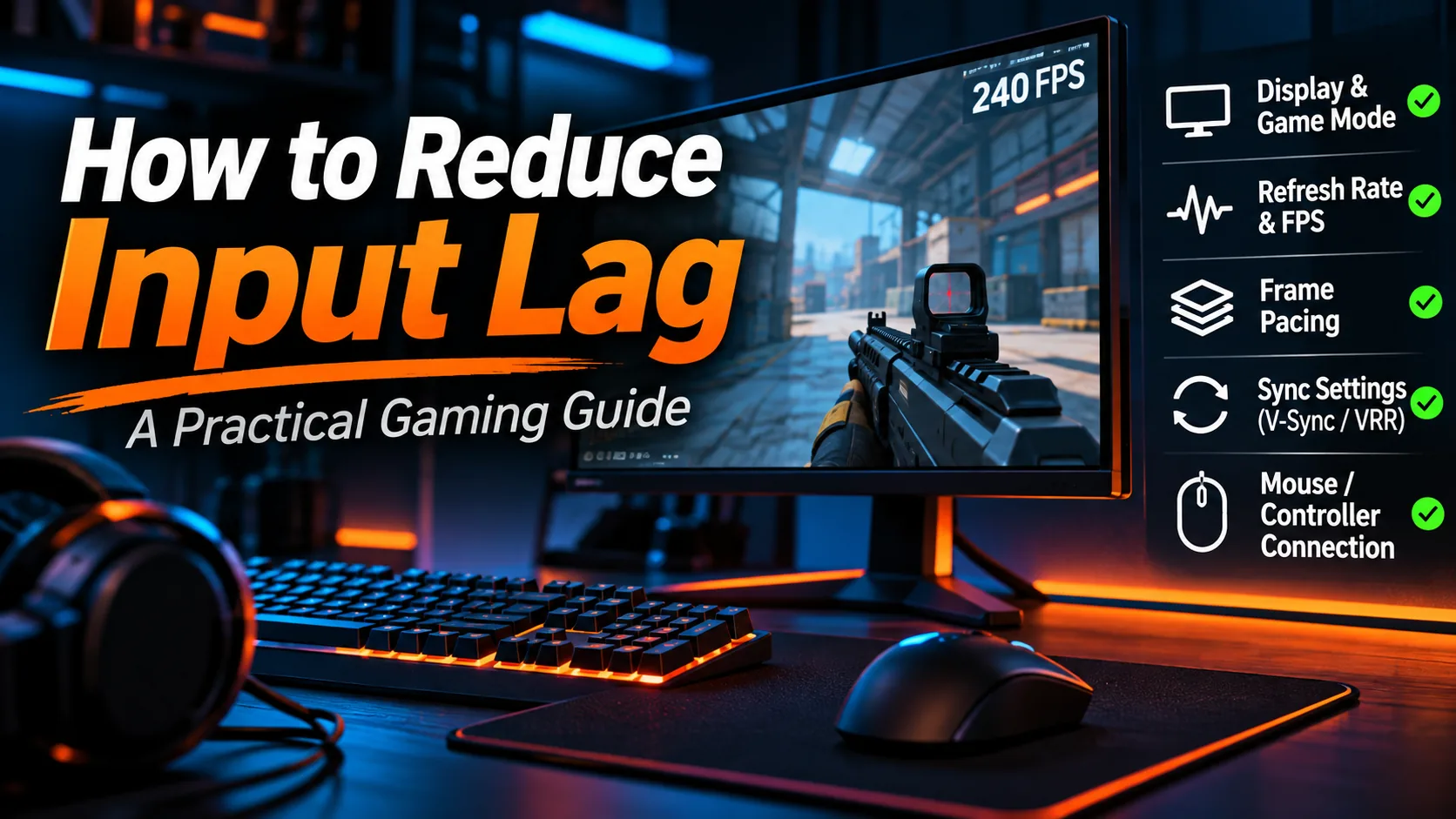
Before hunting for obscure tweaks, check three things: the display's gaming mode, the actual refresh rate, and whether the game delivers frames consistently.
A TV doing extra image processing can undermine otherwise sensible settings. A high-refresh display running at a lower output rate cannot show the extra refreshes you expected. A game that repeatedly stalls will feel inconsistent even with a good peripheral.
Use a training area or offline scene where you can repeat camera turns and movement. Note your starting settings. Keep the same scene and change one variable at a time; a different map, workload, or online match makes comparisons less useful.
Do not buy hardware until you have checked the setup you already own.
2. Use Game Mode / low-latency display settings
TVs often prioritize picture processing for films and broadcasts. A gaming or low-latency mode is intended to reduce processing delay, though its effect and remaining options vary by model. Manufacturer names differ, so consult the display's documentation rather than looking for one exact menu label.
Check motion smoothing or interpolation, noise reduction, and other optional image processing. Some features require additional processing or frame buffering; not every enhancement has the same latency cost. Turn off nonessential processing for a controlled test and compare.
Monitors can also have gaming modes, but do not confuse pixel-response tuning with input-lag reduction. Aggressive overdrive may introduce visible artifacts rather than solve a delayed input chain. Keep picture quality usable.
TV settings may be stored separately for each input or picture mode. Verify the connection you actually play through, including after switching sources or enabling HDR.
3. Match refresh rate and output correctly
Refresh rate is how often a display can update its image. Game FPS is how often the game produces frames. They interact, but they are not interchangeable, and neither setting alone guarantees low latency.
On Windows, check the active display's refresh rate in display settings. On consoles, check supported video-output options. Confirm the display reports the expected signal when possible; selecting an option is less useful than verifying what reaches the screen.
Available combinations depend on the source, display input, resolution, cable, adapters, and bandwidth. A connection that works at one resolution and refresh rate may not support another combination.
Choose a supported mode, not a forced custom setting copied from an unrelated setup. If a higher-refresh option disappears, investigate the connection's capabilities before assuming the display or game is faulty.
4. Improve frame rate and frame pacing
Higher FPS can shorten parts of the input-to-screen chain in many games, but the outcome depends on engine behavior, rendering queues, and the rest of the setup. A high counter is not proof that every frame responds quickly.
Frame pacing describes the consistency of frame delivery. Repeated spikes can make movement feel uneven even when average FPS looks healthy. Where available, use a frame-time graph alongside the FPS counter to identify instability.
Reduce demanding graphics options gradually and compare the same scene. Resolution, effects, and other settings affect different workloads; the useful change depends on what limits your system.
An uncapped game can also push the GPU into sustained saturation, potentially increasing queuing in some configurations. A sustainable frame cap may improve consistency or responsiveness, but test rather than assume. Favor repeatable delivery over a peak number you cannot maintain during combat.
5. Understand V-Sync, frame caps, and VRR
V-Sync synchronizes frame presentation with display refreshes to reduce tearing. It may add latency through waiting or buffering, depending on the implementation and workload. Turning it off can introduce tearing, so weigh responsiveness against the image you actually want to play with.
A frame cap limits frame production. It can help avoid sustained saturation or inconsistent frame delivery, but cap placement and implementation matter. Compare available limiters instead of stacking several without knowing which one takes effect.
Variable refresh rate, including compatible G-SYNC and FreeSync setups, lets the display adapt its refresh timing within a supported range. Behavior outside that range, and interactions with V-Sync and caps, vary by hardware, software, and configuration.
There is no universal best combination. Check the relevant documentation, change one setting, and compare tearing, pacing, and input feel. Do not assume VRR automatically cancels every source of latency.
6. Use in-game low-latency options when available
Some games expose features intended to reduce rendering queues or better coordinate when work is submitted. NVIDIA Reflex and AMD anti-lag-style technologies approach latency management through different mechanisms and support requirements.
Only use an option when your game and hardware actually support it. This guide does not claim support for a particular title. Read the current description and vendor guidance, especially where a feature involves a driver or an additional installation.
Prefer a documented starting configuration over combining multiple latency controls blindly. If enabling a feature changes frame stability or causes problems, revert it and investigate compatibility. These options address parts of the pipeline; they cannot fix TV processing or network delay.
7. Mouse and keyboard input
Polling rate describes how frequently a device reports input. Increasing it can shorten reporting intervals, but the practical result depends on hardware, software, CPU overhead, and game support. The highest available setting is not automatically the best choice.
Test a stable manufacturer-supported setting first. If higher polling introduces stutter, compare a lower setting in the same scene rather than assuming the problem is your aim.
Modern wireless mice and keyboards are not automatically worse than wired devices. Connection technology, receiver placement, interference, battery state, and device implementation all matter. For troubleshooting, compare supported wired and wireless modes and place the receiver as the manufacturer recommends.
Try a direct, supported USB connection if a hub or dock seems involved. No single port color or position guarantees lower latency. Check for disconnections and avoid unsupported peripheral overclocking.
On Windows, pointer acceleration and Enhance Pointer Precision affect how mouse movement maps to pointer movement; they are not universal latency fixes. A game using raw input may bypass that pointer behavior. Use raw input where supported and appropriate, and separate sensitivity consistency from actual delay.
8. Controller input
Controller responsiveness depends on the device, platform, connection mode, firmware, and game. Bluetooth and proprietary wireless links can behave differently, but their names alone do not tell you which is faster on your setup.
Compare supported wired and wireless modes without changing other settings. Use a USB cable that carries data, not just charging power. Some controllers or platforms may keep using wireless even while a cable is attached; confirm the active mode in the relevant documentation.
Dead zones determine how far a stick must move before input registers. An unnecessarily large dead zone can feel like delayed movement, but lowering it does not remove rendering or display latency. Reduce it gradually while checking for drift, and distinguish it from response curves or acceleration.
Install official firmware updates when appropriate. Check battery state, receiver placement, and interference if response is inconsistent. Wireless is a valid option when it behaves reliably; wired is a diagnostic comparison, not a guaranteed upgrade.
9. Reduce unnecessary background load
Recording, overlays, browser tabs, downloads, and other apps can compete for resources. Their impact depends on what they are doing and where your system is constrained, so do not treat every background process as a problem.
Close nonessential apps for a baseline test. Disable optional overlays or recording features one at a time, then compare performance in the same game scene. Re-enable tools that show no meaningful downside.
Watch for CPU or GPU saturation and frame-time spikes. Shader compilation can cause stutter in some games, particularly when new content or shaders are encountered. That interruption worsens perceived responsiveness, but it is not the same diagnosis as steady input latency.
Avoid random cleanup utilities and disabling security services for speculative gains. Identify a repeatable workload problem before changing system behavior.
10. Check display path and adapters
Your video signal may pass through a dock, adapter, switch, capture device, or AV receiver before reaching the display. Some devices pass the signal through with little added delay; others process, buffer, or restrict available output modes. Do not assume every extra connection is harmful.
Temporarily connect the gaming device directly to the display, where supported. Verify the refresh rate and picture mode again, then compare the same scene.
If you use capture equipment, distinguish passthrough from a software preview. A preview can include capture, processing, and display delay and may not be suitable as your play screen.
Reintroduce devices individually. Check each device's supported modes and the TV's per-input settings before blaming the whole chain.
11. Laptop and handheld considerations
Battery saver, power profiles, and device-specific performance modes can limit frame rate or change how performance is sustained. Compare supported plugged-in and battery behavior, while keeping the display mode and game settings consistent.
Some laptops offer a graphics mode or MUX switch that changes how the display connects to the GPUs. The available options and their latency effects depend on the device. Consult its documentation rather than assuming one mode is always better.
Docked handheld play may use a different refresh rate, resolution, power budget, or signal path from the built-in screen. Verify each mode independently.
Heat can also reduce sustained performance. Keep ventilation clear and use the device within its supported operating conditions. A short, cool test may not represent responsiveness after an extended session.
12. Console-specific checks
Confirm the TV's low-latency mode on the actual console input. Check supported high-refresh output, including 120 Hz where the console, game, display, and connection allow it. High-refresh output does not mean every game renders at that frame rate.
Use VRR only where supported and compare its behavior with the game's available performance modes. Those modes may trade visual detail for different frame delivery; assess the actual gameplay, not only the menu label.
Check official controller firmware and connection options. If a receiver or capture device sits between console and display, test a direct connection. Recheck output and TV settings after changing the chain.
13. PC-specific checks
Confirm the correct refresh rate for the display running the game, especially after driver updates or display changes. Check whether the game selects a different output mode.
Fullscreen and borderless behavior varies by game, operating system, and presentation path. Exclusive fullscreen is not universally faster. Compare available modes under otherwise identical conditions, including any differences in VRR or refresh behavior.
Treat GPU queue and driver latency controls as configuration-specific tools. Follow current guidance for the feature and game rather than forcing every setting at once. Also check background load, USB stability, and official drivers or firmware when there is a reproducible problem.
Keep a working configuration available to restore. Broad registry changes or unverified driver tweaks are a poor first response to a problem that could be display processing.
14. A practical troubleshooting order
- Verify display low-latency mode. Check the active input and disable nonessential processing for a baseline.
- Verify refresh rate and output. Confirm a supported mode reaches the display.
- Stabilize FPS and frame pacing. Reduce demanding settings or test a sustainable cap.
- Test V-Sync, VRR, and frame caps. Compare individual changes, noting tearing and consistency as well as feel.
- Test the input connection. Compare supported modes and check cables, receivers, and dead zones.
- Close unnecessary background load. Isolate overlays, recording, and competing apps.
- Simplify the signal path. Test a direct display connection, then restore devices individually.
- Change one variable at a time. Record the result and revert changes that do not help.
Repeat the same movement in the same scene over several attempts. Subjective testing can identify useful improvements, but it does not establish precise latency measurements. Separate online match behavior from local camera response.
Common mistakes
- Confusing ping with local input lag. A delayed hit confirmation is not necessarily a delayed camera response.
- Changing ten settings together. You lose the ability to identify the useful change.
- Chasing tiny tweaks before fixing display processing. Check the largest obvious contributors first.
- Forcing unsupported refresh settings. Use combinations the complete connection supports.
- Overclocking peripherals without understanding stability. Reporting changes can introduce problems rather than solve them.
- Assuming wired always beats modern wireless. Compare the actual supported modes on your setup.
- Ignoring frame pacing. A healthy average FPS can hide disruptive stalls.
- Ignoring TV per-input configuration. Another source's gaming mode may not apply to yours.
Final takeaway
Fix the display mode, verify refresh rate and output, and aim for consistent frame delivery. Then examine sync settings, input connections, and anything adding processing to the chain.
Keep changes reversible and test them one at a time. A responsive setup comes from removing demonstrated problems, not collecting every tweak you find online.